
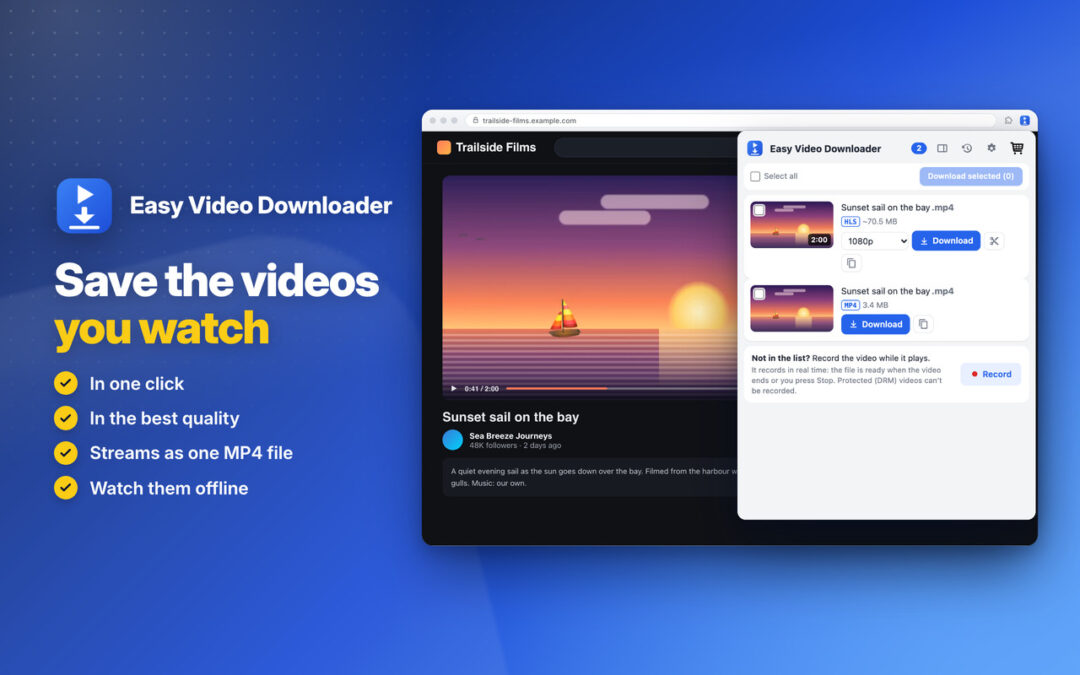
Imagine finishing a great online lesson, then hopping on the bus or settling onto the sofa with no signal and still being able to rewatch every step. Or starting a home workout and following the instructor even when the connection drops. That is exactly what Easy Video Downloader makes possible. In this post you will discover why offline access changes how you learn and practise, how the extension works in three simple steps, the features that keep everything private and light, the free and Premium options, practical tips for everyday use, and a clear reminder about responsible downloading.
Why save videos for offline learning and practice
Online lessons and tutorials are brilliant until the internet disappears. A course video you planned to study on the commute becomes useless without a signal. A workout routine or a cooking how-to that you want to follow at home can stall if the connection is unstable. Saving the video once lets you rewatch it any time, pause and replay tricky parts, and keep learning or practising without depending on a live stream.
Offline copies also save mobile data and give you full control over quality and file size. You decide when and where to watch, whether that is on a train, in a café with weak Wi-Fi, or simply in a quiet room with the phone set to airplane mode. The result is less frustration and more consistent progress.
How it works in three steps
Getting a video onto your computer is deliberately straightforward.
- Open the page that contains the lesson, tutorial or workout video you want to keep.
- Click the Easy Video Downloader icon in your browser toolbar. The extension scans the page, including streamed content, and lists the available videos.
- Pick the quality you prefer (1080p, 720p, 480p and more), check the file size shown for each option, then click Download. The video is saved as a single MP4 file with the sound included.
You can also right-click any video on the page and choose “Download this video”. Progress appears with speed and time remaining, and a clear notice appears when the file is ready. Everything stays on your own computer.
Features that keep it simple and private
Easy Video Downloader is built to stay out of your way while giving you the tools you need.
- It detects ordinary videos and streamed ones (HLS and DASH) and combines them into one clean MP4 file with audio.
- You choose the quality and see the exact size of each option before you download.
- Right-click any video and select “Download this video” for instant access.
- A live progress view shows speed and time left, plus a completion notice.
- A downloads history lets you open the file, reveal it in its folder, copy the link or search past downloads.
- Everything happens locally: no account, no extra program, no server in the middle. The interface is a single small popup that is easy on CPU and RAM.
The extension works in Chrome, Microsoft Edge and Firefox. You can install it from the project page or the store listings linked below.
Free and Premium options
The free version lets you download one video a day. That is enough to try the extension and keep the occasional lesson or tutorial.
Premium Level 1 is free once you have three of our extensions installed. It raises the daily limit to three videos and unlocks audio-only downloads (.m4a), subtitles (.vtt or .srt), the ability to save only a part of a video by setting start and end points, file-name templates, and a side-panel list of videos found on the page.
Premium Level 2 is a paid upgrade (yearly or a one-time purchase that covers all our extensions in all browsers). It removes the daily limit, lets you download several videos in one click, speeds up transfers, and adds the option to record a video while it plays when a direct download is not possible. Live streams can also be saved until you press Stop. Full details and the current options are on the Premium page.
Practical tips for everyday use
A few simple habits make the extension even more useful.
- Choose a lower quality when you only need the content for reference or when storage space is limited. You still get a clear picture and full audio, but the file is smaller and uses less data while downloading.
- Always check the size shown next to each quality option before you start. That way you know exactly how much space the file will take.
- Open the downloads history whenever you need to find an earlier video quickly. From there you can open the file, show it in its folder, copy the original link or search by name.
These small steps keep your library tidy and help you stay productive whether you are studying on the move or practising at home.
Download responsibly
Please note that this extension doesn’t support YouTube.
The extension is not responsible for the content downloaded by users, so please check the copyright and permissions before downloading.
Only keep material you have the right to save and use offline. Respect the creators and the terms of the sites you visit.
Get started in minutes
Ready to keep your favourite lessons and tutorials for later? Install Easy Video Downloader, open any page with a video you want to save, click the icon, pick the quality and hit Download. The file appears on your computer ready for offline viewing.
Add the extension for your browser:
You can also visit the Easy Video Downloader project page for full details, or explore more of our tools on the WWEvents Apps home page. Once it is installed, the next lesson, workout or how-to you love can travel with you, ready whenever you are.