
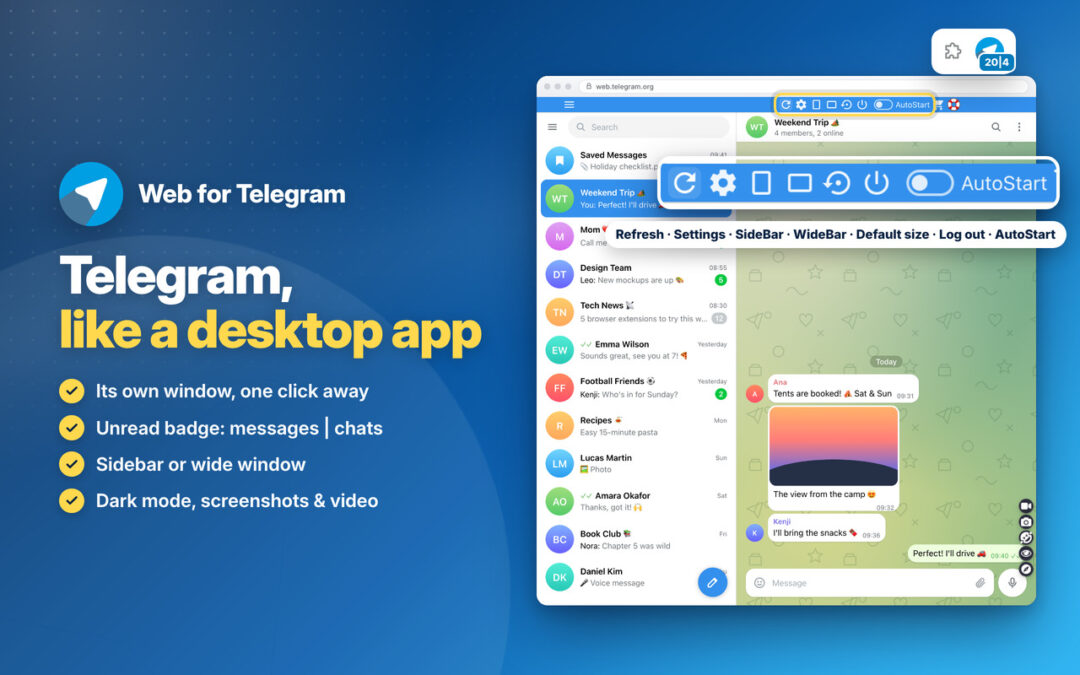
Telegram lives on the phone, but long messages, files and busy groups are easier on a big screen with a real keyboard. You do not have to install a program for that: Telegram works in the browser, whether you use Firefox, Chrome or Microsoft Edge.
In this guide we look at the options, and show how our free extension Web for Telegram opens Telegram in a window of its own, like a desktop app, always one click away.
Telegram on the computer: your options
- Telegram’s web version: open it in any browser tab and log in with your phone. Nothing to install, but it is one more tab among many.
- The Telegram desktop program: a separate application to download and keep updated.
- Web for Telegram: an extension for Firefox, Chrome and Edge that opens Telegram in its own compact window from the toolbar, with your new messages on the icon.
| Option | What you install | Best for |
|---|---|---|
| Web version in a tab | Nothing | Quick use on any computer |
| Desktop program | A separate application | People who live in Telegram all day |
| Web for Telegram | A small browser extension | Telegram one click away, next to your work |
What Web for Telegram does
Web for Telegram opens Telegram’s mobile view in a compact window: a cleaner interface that is lighter on CPU, memory and network than a full browser tab. Your chats stay in sync with your phone. It is an independent extension, not made by Telegram.
- Chats, groups and channels, synced with your phone.
- Voice messages, stickers and GIFs, and photos, videos and files up to 2 GB.
- The badge on the icon shows your new messages and chats.
- Smartphone Configuration: the steps to log in with your phone.
- SideBar or WideBar in one click; a second window or two accounts side by side.
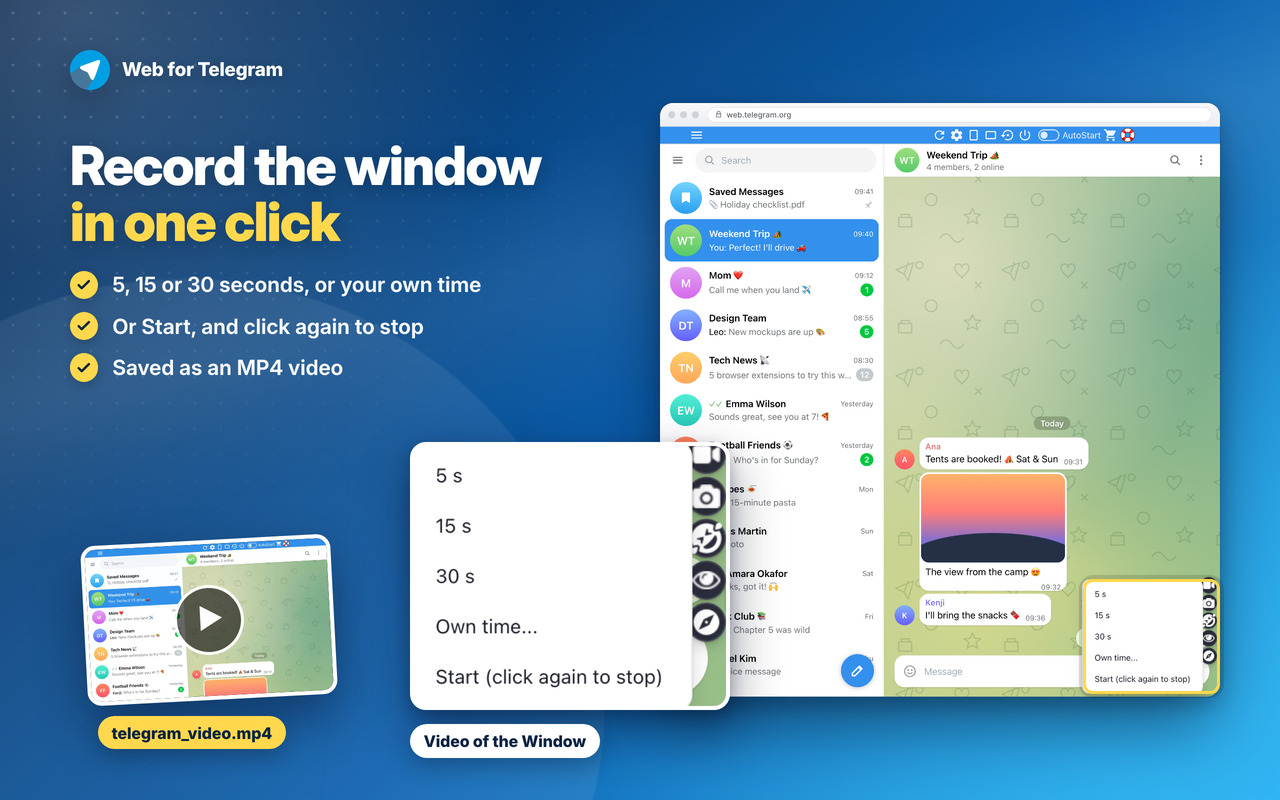
- Dark mode (automatic, on or off), nine skins, an emoji keyboard, a window screenshot and a short recording of the window.
- Incognito mode, which keeps the window dimmed until you point at it, and auto-start with the browser.
Step by step, in your browser
In Firefox
- Open Web for Telegram on Firefox Add-ons and click to add it.
- Click its icon on the toolbar and follow Smartphone Configuration to log in with your phone.
- Pin the icon so the badge with your new messages is always visible.
In Chrome
- Add Web for Telegram from the Chrome Web Store.
- Pin it from the puzzle-piece menu, then click it and log in with your phone.
In Microsoft Edge
- Add Web for Telegram from Edge Add-ons.
- Click the icon and log in the same way.
The short video shows the whole thing:
Tips for everyday use
- Use the SideBar size to keep Telegram open next to the page you are working on.
- Have a work account and a personal one? Open them side by side in two windows.
- Turn on auto-start, so Telegram is ready when the browser opens.
- Sharing a screen or working in a café? Incognito mode keeps the window dimmed until you point at it.
Questions people ask
Is there a Telegram extension for Firefox?
Yes. Web for Telegram is available on Firefox Add-ons, as well as for Chrome and Edge. It opens Telegram in its own window from the toolbar.
How do I use Telegram Web in Chrome?
Open Telegram’s web version in a tab and log in with your phone, or add Web for Telegram to open it in its own window with one click.
Does Telegram work in Microsoft Edge?
Yes. The web version works in Edge, and Web for Telegram is on Edge Add-ons too.
Conclusion
You do not need another program to use Telegram on the computer. With Web for Telegram it opens in its own light window, synced with your phone, and your new messages show right on the toolbar, in Firefox, Chrome and Edge.
Find every detail on its project page, and see what Premium adds to our extensions.
More from us: all our Firefox add-ons, Chrome extensions and Edge extensions.