
Most of us now use more than one AI assistant: one for writing, another for fresh answers from the web, a third for code or long documents. Keeping each one in its own tab means a lot of switching, copying and pasting.
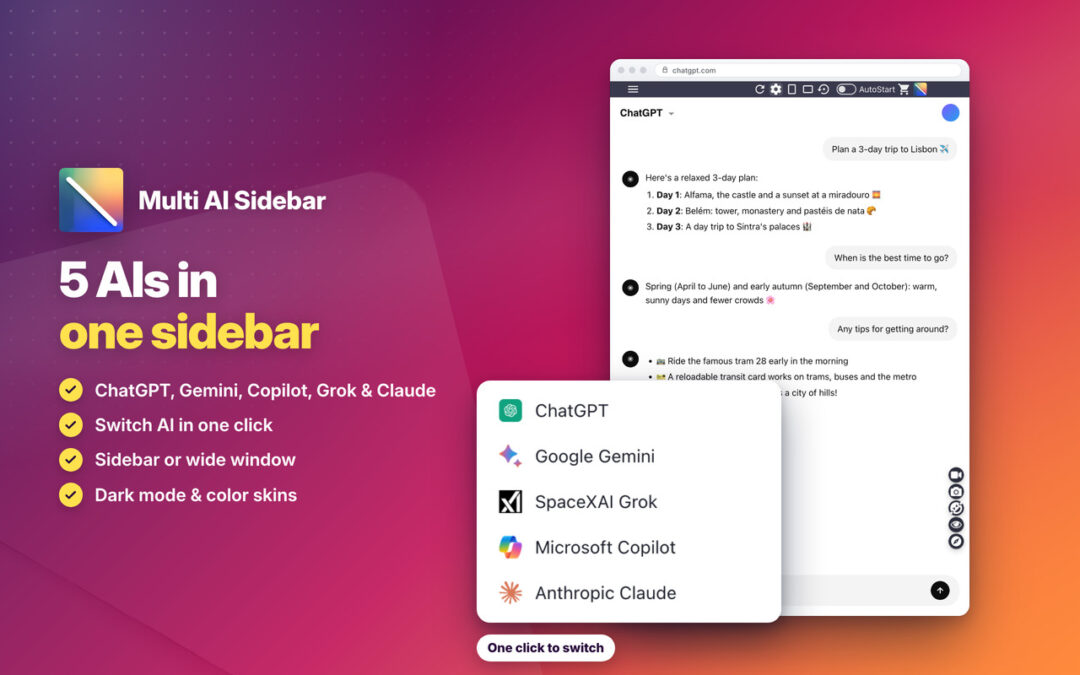
An AI sidebar puts them next to the page you are working on. In this post we look at how that helps, and at our free extension Multi AI Sidebar, which keeps five assistants in one window, one click apart, in Chrome, Microsoft Edge and Firefox.
What an AI sidebar is
An AI sidebar is a narrow window that sits beside the page you are reading or writing. You ask a question, get help with a paragraph or a translation, and go straight back to your work, without hunting for the right tab.
It is especially useful when you want a second opinion: ask one assistant, then ask another the same question and compare.
Five assistants in one window
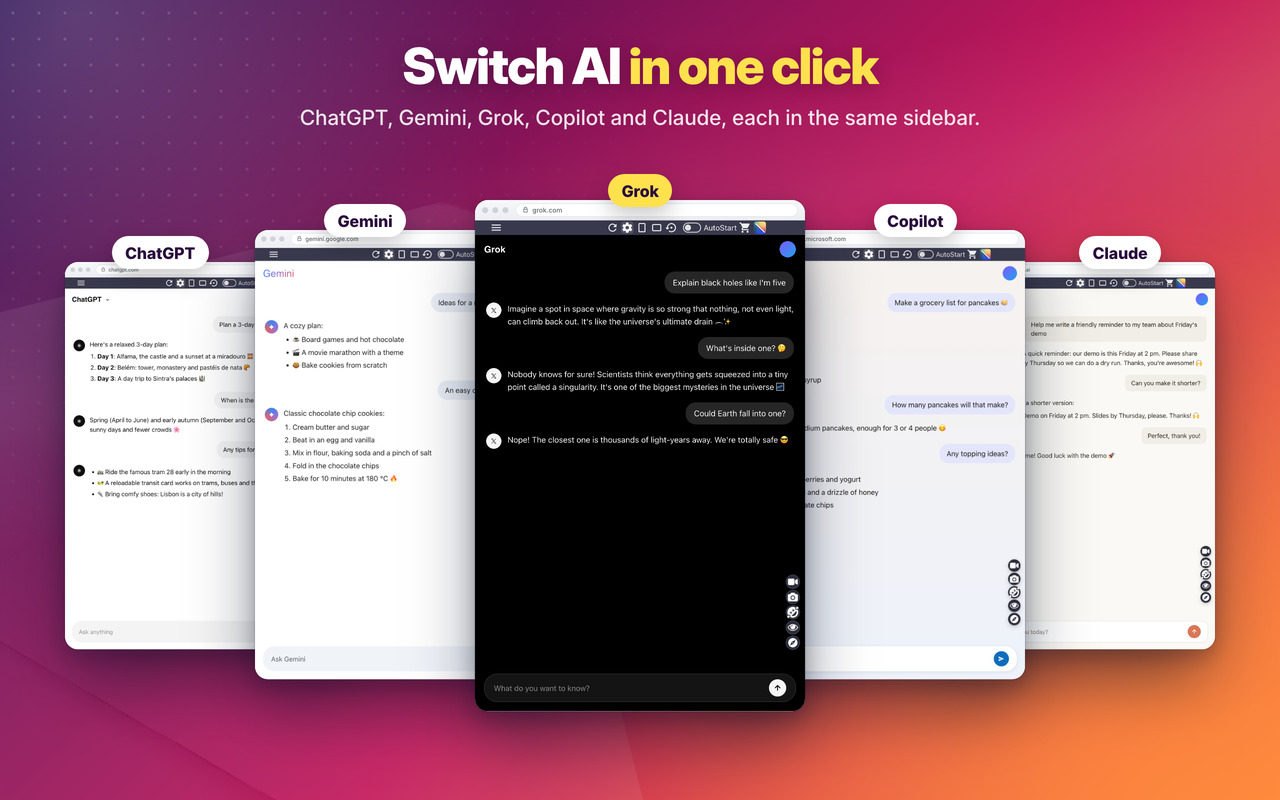
Multi AI Sidebar opens the official web apps of five AI assistants in one compact window, with their mobile view: cleaner, and lighter on CPU, memory and network than separate tabs or programs. You sign in to each one with your own account, as on its website. It is our own extension, not made by any of these companies.
- ChatGPT: the all-rounder for writing, ideas, explanations and images.
- Gemini: Google’s AI, good for up-to-date answers, images and long documents.
- Copilot: Microsoft’s AI, with web answers and their sources, and free image creation.
- Grok: real-time news and trends from X, with a sense of humour.
- Claude: strong at writing, long documents and code, with careful answers.
Switch between them from the top bar in one click, or open two side by side to compare answers. The badge on the icon shows “…” while an assistant is answering and “1” when a new answer is waiting.
How to start, in three steps
- Add Multi AI Sidebar to your browser (the buttons are below).
- Click its icon: the sidebar opens. Pick an assistant in the top bar and sign in.
- Choose SideBar or WideBar to fit it next to your page, and pin the icon.
The video shows it in a minute:
What you can do with it
A few everyday uses, and how the sidebar helps:
| Task | How the sidebar helps |
|---|---|
| Summarise a long article | Ask while the article stays open next to it |
| Improve an email or a post | Paste a paragraph, get a better version, paste it back |
| Research a topic | Compare answers from two assistants side by side |
| Translate | Keep the original on the page and the translation beside it |
| Code questions | Ask about an error without leaving the page |
More than chat
- Image and design tools in the same switcher: Image Creator, Designer and Magic Studio.
- A second window, or two accounts at the same time, side by side.
- Dark mode (automatic, on or off) and nine skins.
- A window screenshot, a short recording of the window, and an emoji keyboard.
- Incognito mode, which keeps the window dimmed until you point at it.
Conclusion
An AI sidebar keeps your assistants where your work is. With Multi AI Sidebar, ChatGPT, Gemini, Copilot, Grok and Claude are one click apart, in a light window next to any page, free in Chrome, Microsoft Edge and Firefox.
See every detail on its project page, and what Premium adds.
More tools from us: Chrome extensions, Edge extensions and Firefox add-ons.